Access Control Profiles
In wachsenden Unternehmen sehen Mitarbeiter oft dutzende Menüpunkte, von denen sie nur einen Bruchteil benötigen. Das führt zu Verwirrung, Fehlbedienungen und unnötigen Supportanfragen. Access Control Profiles räumt damit auf.
Ihr Nutzen
Jeder Mitarbeiter sieht nur die Menüpunkte, die für seine Rolle relevant sind. Schnellere Einarbeitung neuer Kollegen.
Profile wie „Vertrieb“ oder „Einkauf“ erstellen und direkt im Benutzerformular zuweisen – ohne technische Kenntnisse.
Mehrere Profile pro Benutzer möglich. Sichtbare Menüpunkte werden automatisch zusammengeführt.
Funktionen im Detail
Access Control Profiles
Odoo — Detalex GmbH
Overview
This module provides role-based visibility control for top-level menu entries. Create access profiles, assign them to users, and define which main menu entries each profile can see.
Many companies install multiple Odoo apps but not every employee needs access to all of them. With Access Control Profiles you can hide entire application menus from users who don't need them — keeping the interface clean and focused.
How It Works
Each access profile contains a list of top-level menu entries that should be visible. Profiles are assigned to users via the Access Profiles tab on the user form. The system works as follows:
- No profile assigned — the user sees all menus as if the module were not installed. No restrictions apply.
- One profile assigned — the user only sees the menus listed in that profile. All other top-level menus (and their sub-menus) are hidden.
- Multiple profiles assigned — the visible menus are the union of all assigned profiles. This allows you to build roles from small, reusable building blocks.
Example
| User | Assigned Profiles | Visible Menus |
|---|---|---|
| Maria Schmidt | Sales + Purchase | CRM, Sales, Purchase, Inventory, Invoicing, Contacts |
| Thomas Weber | Project Manager | Project, Timesheets, Contacts |
| Lisa Müller | External | Contacts |
| Max Huber | (none) | All menus visible (no restriction) |
Features
- Access Profiles — Named profiles that control which top-level menu entries are visible.
- Cumulative system — Assign multiple profiles to a user; visible menus are combined (union of all profiles).
- No profile = no restriction — Users without any assigned profile see all menus as usual.
- Smart button — The profile form shows a user count button that links directly to the list of assigned users.
- Predefined templates — Ships with Sales, Purchase, Project Manager, and External profiles ready to configure.
- User form integration — Assign profiles directly on the user form (Access Profiles tab).
- Superuser bypass — The Odoo superuser (Administrator in debug mode) is never restricted by profiles.
Screenshots
Profile Configuration
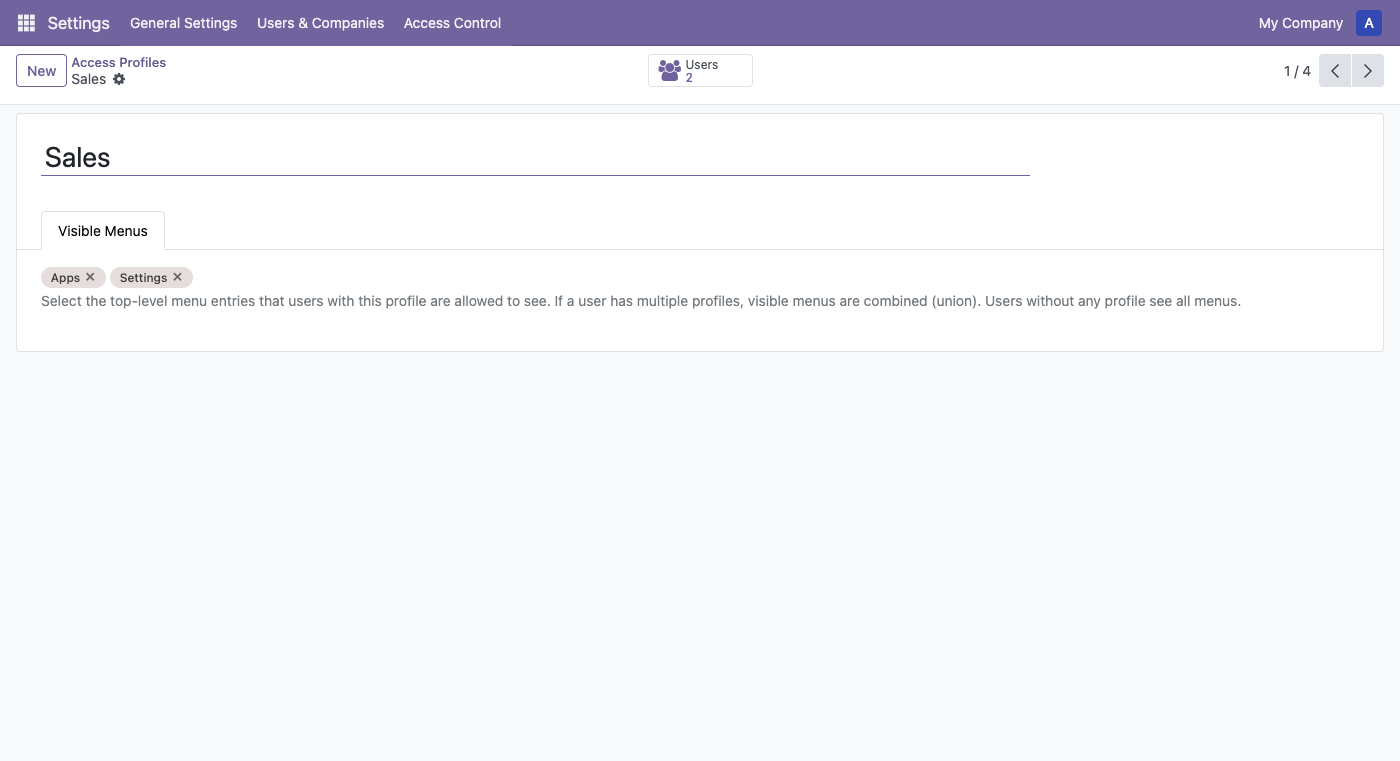
The "Sales" profile with visible menus (Apps, Settings) and the Users smart button showing 2 assigned users.
User Assignment
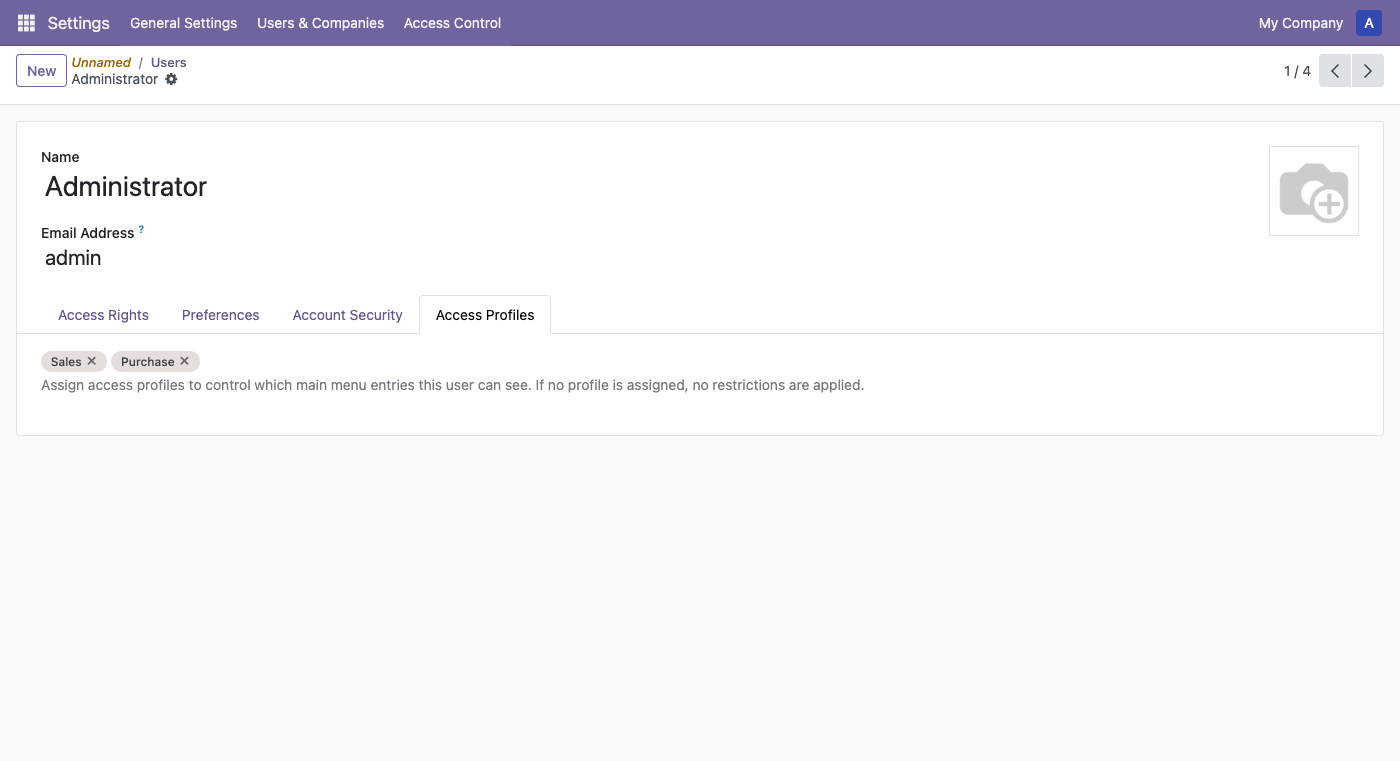
Assign one or more access profiles directly on the user form. This user has both "Sales" and "Purchase" profiles, so they see the combined menus.
Profile List
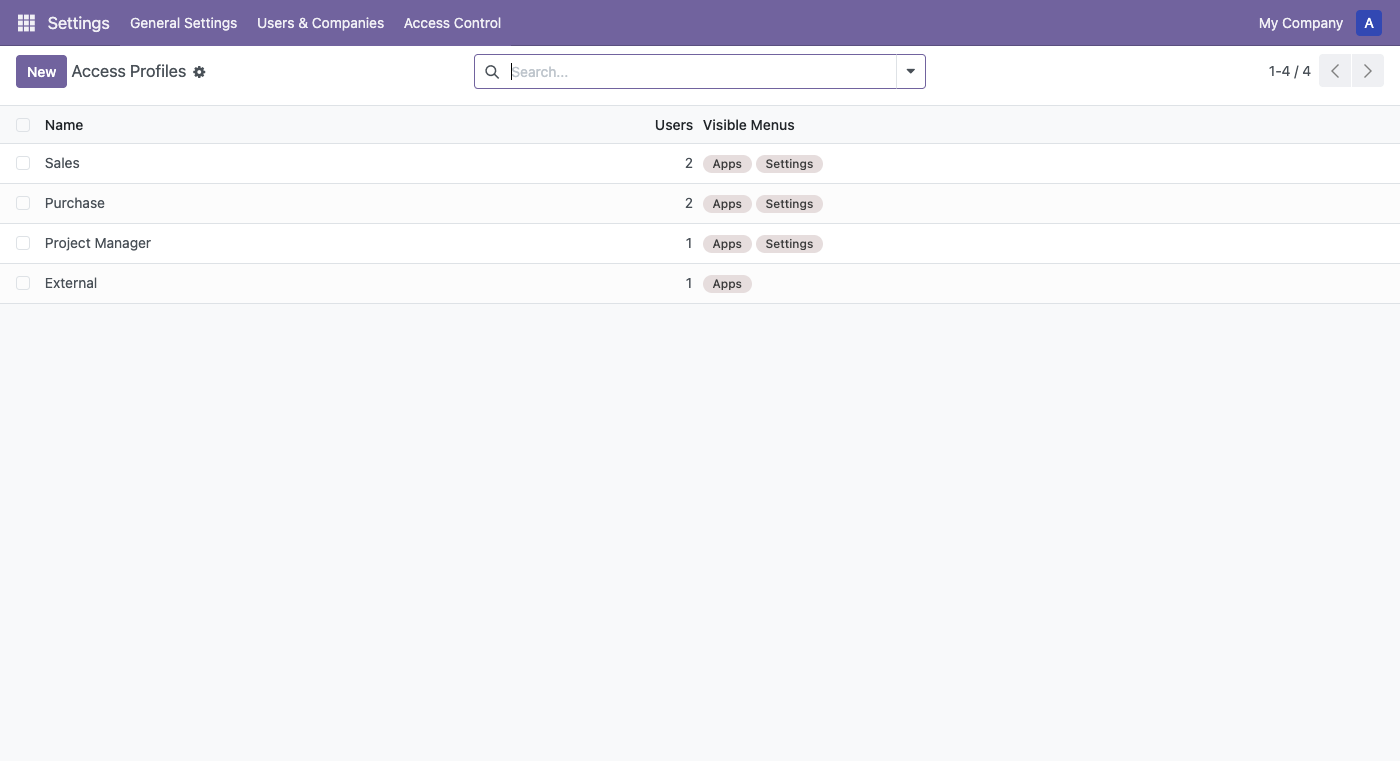
Overview of all access profiles with user count and assigned visible menus.
Usage
Step 1: Configure Profiles
- Go to Settings > Access Control > Access Profiles.
- Open an existing profile (e.g. "Sales") or create a new one.
- In the Visible Menus tab, select the top-level menus that users with this profile should see.
Step 2: Assign Profiles to Users
- Go to Settings > Users & Companies > Users.
- Open a user form.
- Click the Access Profiles tab.
- Add one or more profiles. The user will immediately see only the menus allowed by their combined profiles.
Step 3: Verify
Log in as the restricted user (or use the smart button on the profile form to see all assigned users). The top-level menu bar should only show the allowed menu entries. All sub-menus of hidden top-level entries are also hidden automatically.
Configuration
Only users in the Access Control Manager group can create and edit profiles. This group is found under Settings > Users > Access Rights > Other > Access Control.
The Access Control menu entry appears in the top navigation bar under Settings once the group is assigned.
Förderfähige Maßnahme
Die Einführung und Anpassung von ERP-Systemen wie Odoo ist in Deutschland förderfähig. Unternehmen können von staatlichen Förderprogrammen profitieren – z. B. über den ERP-Förderkredit Digitalisierung der KfW, Landesprogramme wie den Digitalbonus Bayern oder den Digital-Zuschuss Hessen sowie die kostenlosen Beratungsangebote der Mittelstand-Digital Zentren des BMWK (Stand: Juli 2026). Wir unterstützen Sie gerne bei der Antragstellung und beraten Sie zu den Möglichkeiten für Ihr Unternehmen.
Interesse geweckt?
Lassen Sie sich unverbindlich beraten – wir zeigen Ihnen, wie dieses Modul in Ihre Prozesse passt.
Beratungsgespräch vereinbaren